You have a store on HalaOrders and a Facebook Page, and every time you add a new product you repeat the same steps: save the product photo to your phone, copy the name and price, copy the product link, open Facebook, paste it all into a post, and hope you didn't forget anything. And if you want to post in the evening at peak time, you have to be free at exactly that moment.
From today you can do all of this from your store dashboard: connect your Facebook Page once, then post any product with its photo and link in one click, or schedule it for any time in the next 30 days.
In short: HalaOrders now connects your store to your Facebook Page through Facebook Login. From the product list or the product page you press "Share on Facebook", edit the ready-made text if you like, and post right away or schedule the post anywhere from 10 minutes to 30 days ahead. The post goes out with the product's main photo and its link on your store, and all your posts are collected in one table where you can open a post on Facebook, edit it or delete it.
Why does a Facebook Page still matter for your store?
Facebook is still the biggest place your customers gather in Egypt. According to DataReportal's Digital 2026: Egypt report, Facebook ads reach 51.6 million users in Egypt, about 68.8% of adults aged 18 and over.
Many people discover a brand through an ad, then visit the Page to look through the posts before ordering. A Page whose last post was two months ago worries the customer, while a Page that regularly shows your new products reassures them that the store is active and real.
The problem is that this regularity is tiring. Socialinsider's report on more than 130,000 business Pages on Facebook says brands post 39 times a month on average, more than once a day. That is hard to keep up with by hand while you prepare orders and reply to customers.
A photo post or a link post?
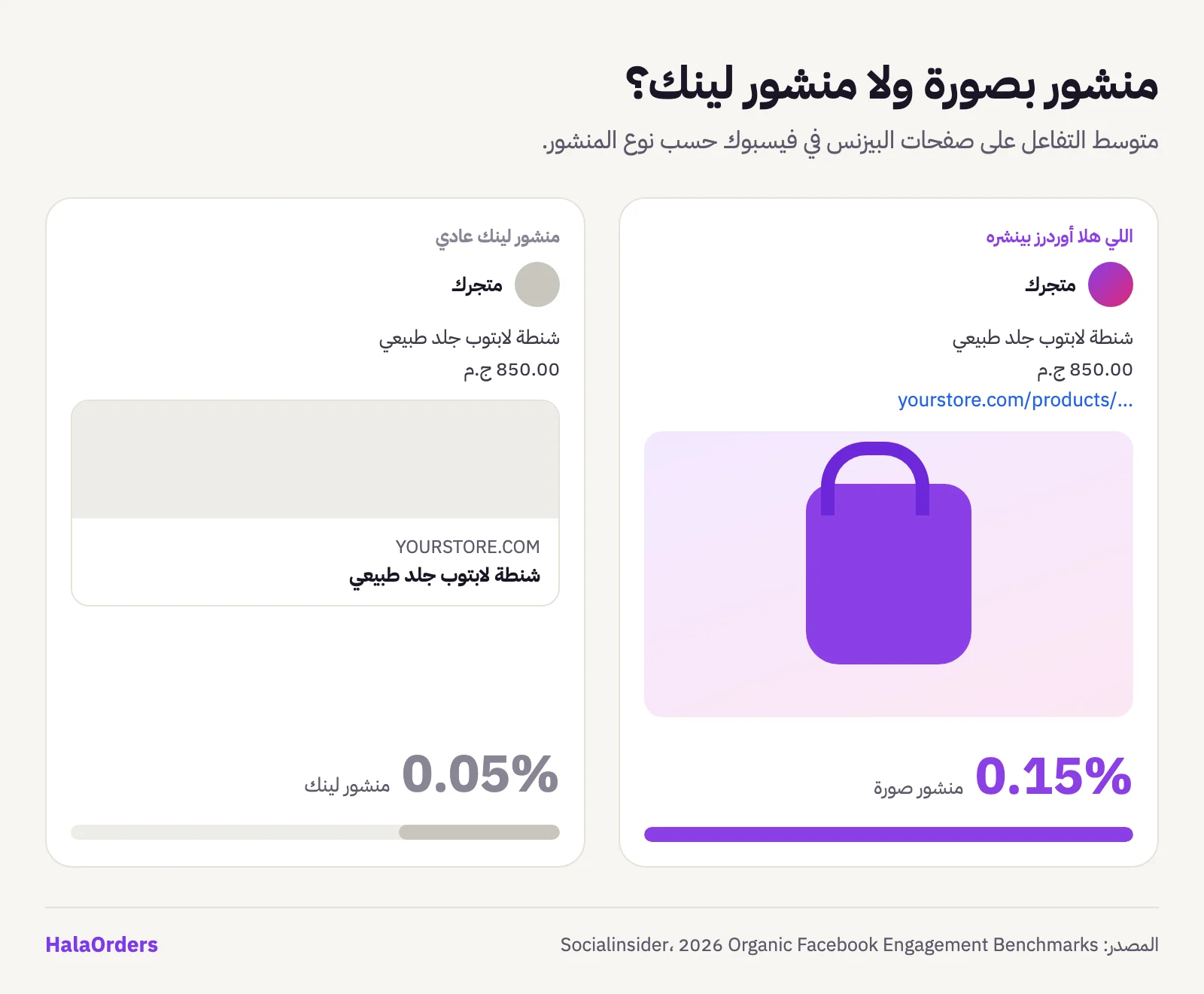
In the same Socialinsider report, photo posts have an average engagement rate of 0.15%, while plain link posts get only 0.05%, so photos bring about 3 times the engagement. Links were the weakest post type on every metric.
That is why, when HalaOrders posts a product that has a photo, it creates a photo post with the product's main photo and puts the product link at the end of the text. The customer sees the product itself in the feed, and if they like it they tap the link and order right away. If the product has no photo, it is posted as a normal link post.
How do you connect your Page to the store?
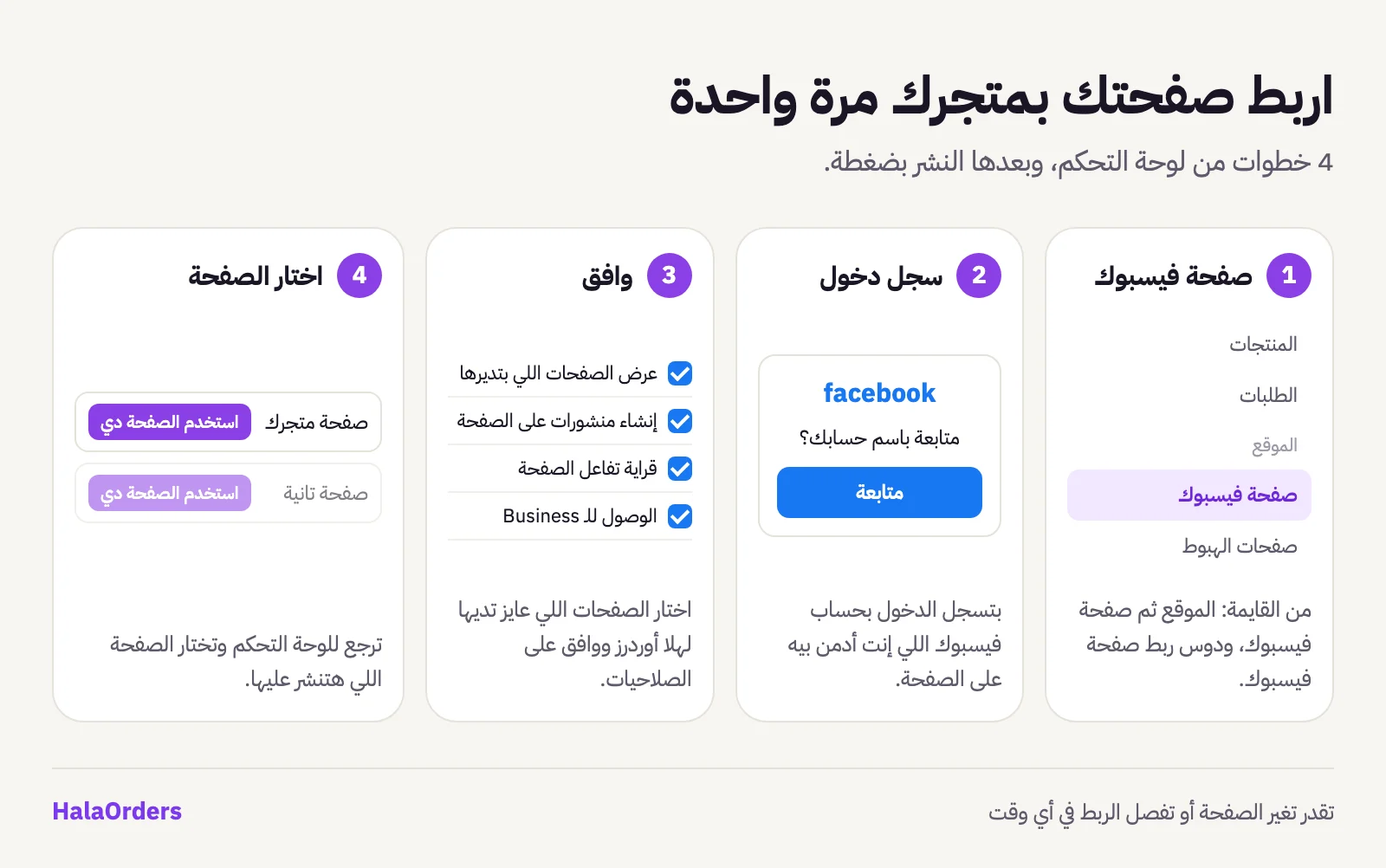
You connect it once. You need to be the store owner or an admin of the store, and an admin of the Facebook Page:
- In the dashboard open Website → Facebook Page.
- Press Connect Facebook Page, and the Facebook Login screen opens.
- Approve the permissions and choose the Pages you want to give HalaOrders. If your Pages are in a Business portfolio, they show up too.
- You return to the dashboard and see a list of your Pages. Press Use this Page next to the one you want to connect.
The Page then appears in the same place as a connected Page, with two buttons: Change Page and Disconnect.
Post a product in a minute
After connecting, you will find the Share on Facebook button in two places:
- In the product list: in the actions menu (⋮) next to any active product.
- On the product view page: at the top next to the edit button, together with the button to create a landing page for the product.
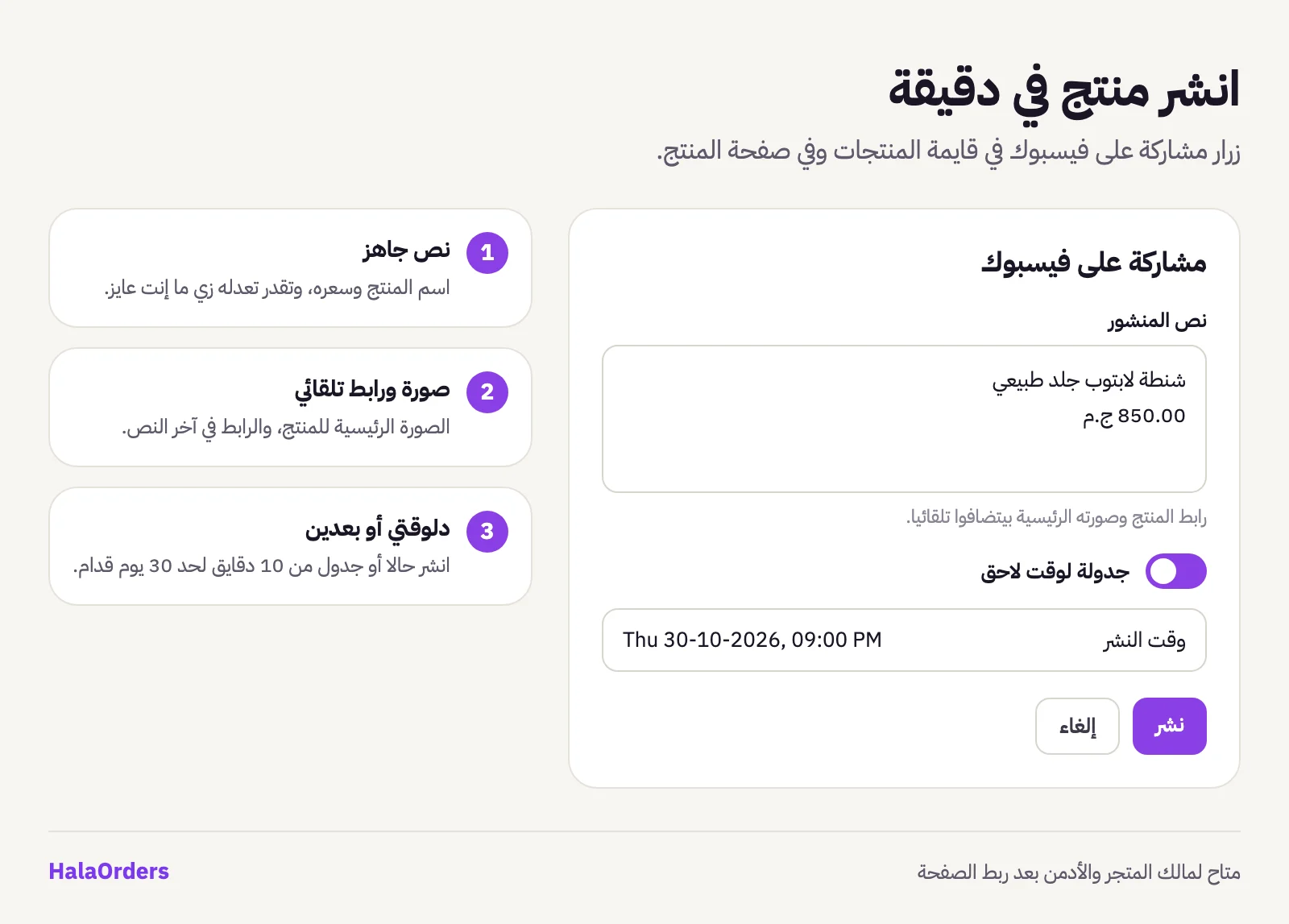
Pressing it opens a window with:
- Post text: ready-made with the product name and price, and you can change it however you like. The product link and photo are added automatically, so don't type them.
- Schedule for later: leave it off to post right now, or turn it on and pick the day and time.
Press Post, and within seconds the post is on your Page.
Quick tips for the post text
- Lead with the benefit, not the product name: "A bag that carries your laptop and charger and still feels light" beats "Laptop bag, 2026 model".
- Make the price clear, and if there is an offer, say until when.
- Write one sentence that moves the customer: "Order now and pay on delivery".
- If you need more ideas, we have a full article on product descriptions that sell.
Schedule the whole week's posts in one sitting
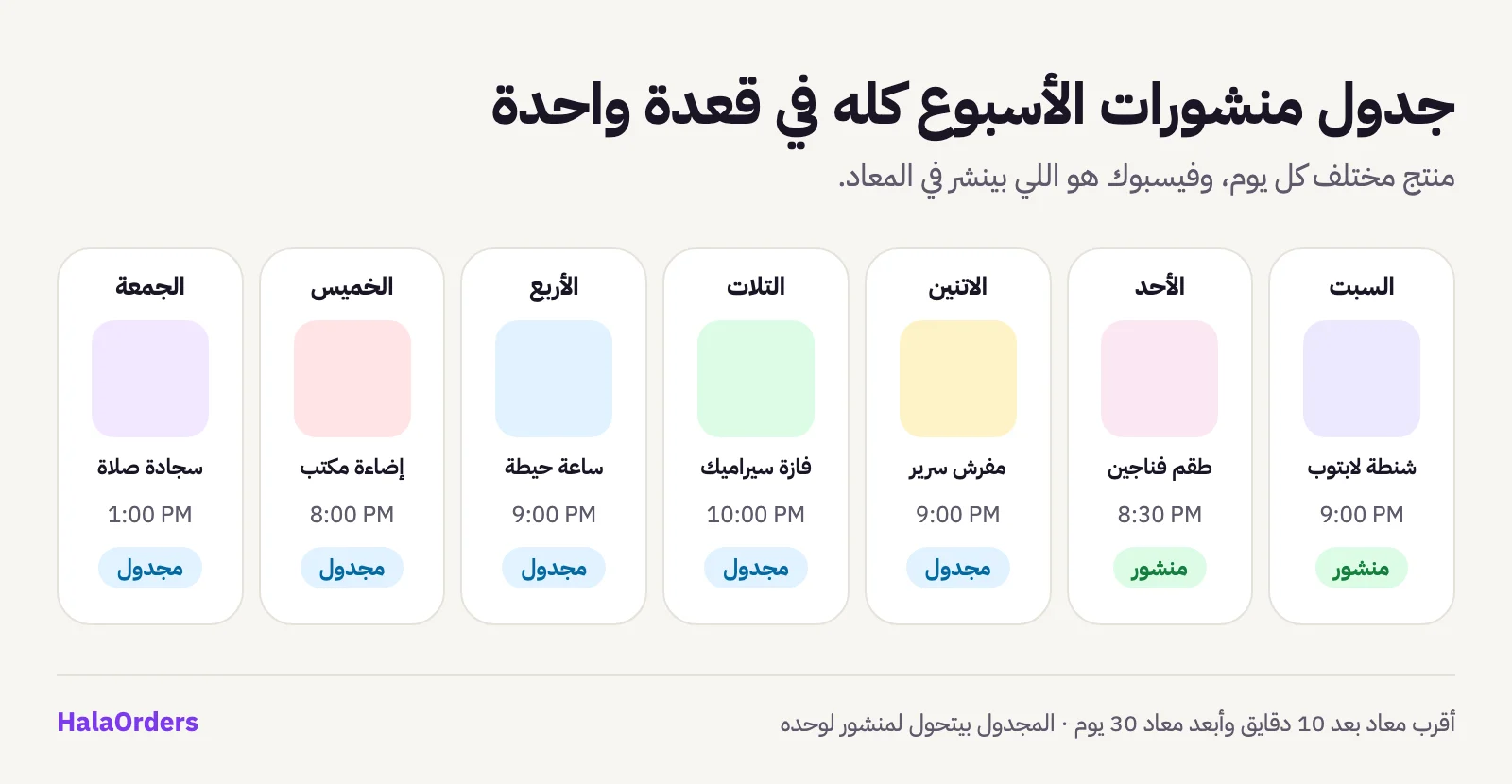
Scheduling lets you prepare a week of posts in half an hour: pick the products and set a day and time for each. Facebook itself publishes each post on time, so you don't need to keep the dashboard open or have your phone with you.
The scheduling rules are simple:
- The earliest time is 10 minutes from now.
- The latest time is 30 days ahead.
- Until the time comes, the post shows in your table with the status Scheduled, and once it is published it changes to Published.
Spread the posts over the week instead of publishing them all on one day. That keeps your Page active every day and gives every product its chance.
All your posts in one table
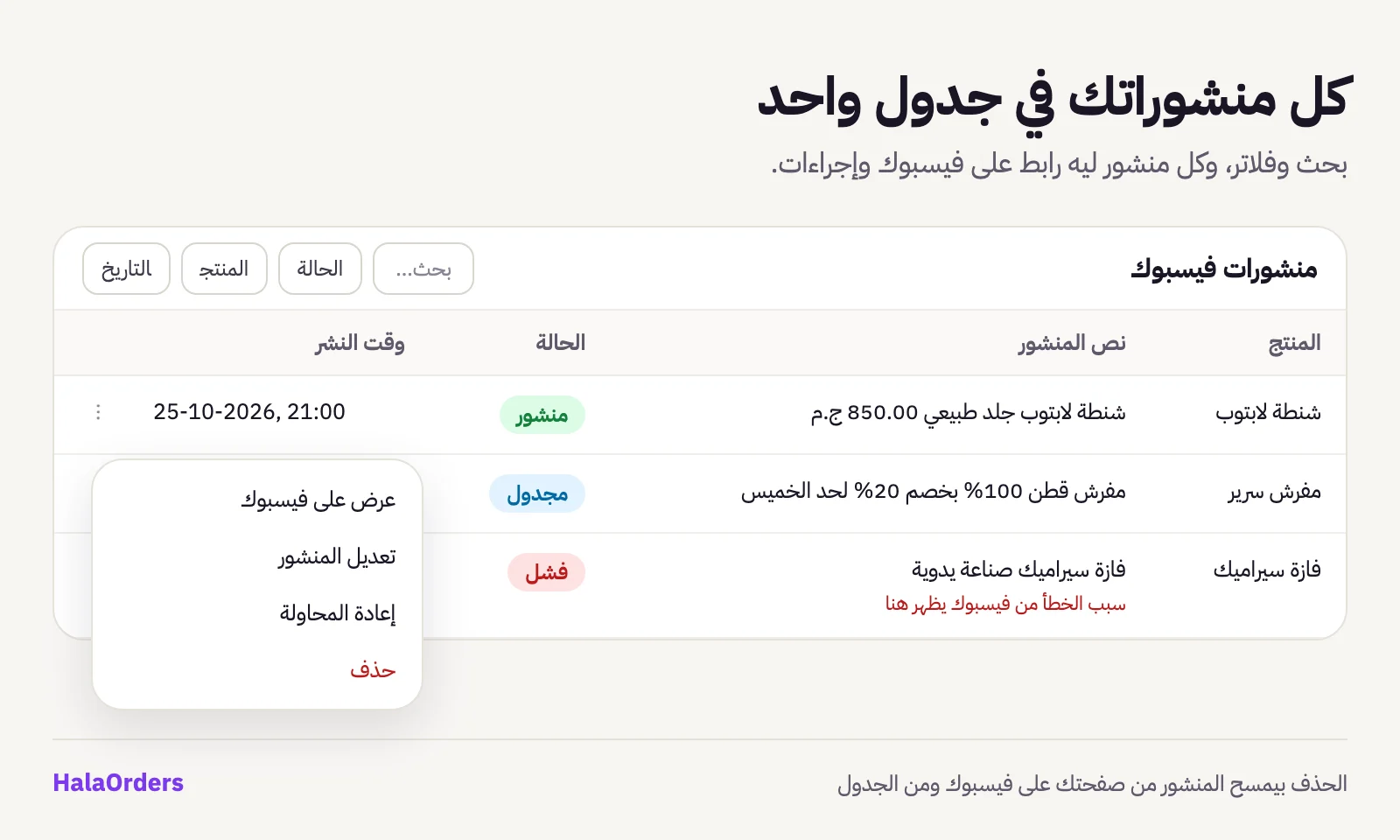
On the Facebook Page screen in the dashboard, under the connection details, you will find the Facebook posts table with every post made from your store:
- The product, post text and status: Published, Scheduled or Failed.
- Search in the post text and product name, and filters by status, product and date.
- View on Facebook: opens the post itself on your Page.
- Edit post: change the text, and the edit is applied on Facebook right away.
- Retry: if a post failed, you see the reason under the text and can publish it again in one click.
- Delete: deletes the post from your Facebook Page and from the table.
Permissions and security
- We only post when you ask. There is no automatic posting unless you press Post or schedule it yourself.
- Only the store owner and admins can connect the Page and post on it.
- The Page token Facebook gives us is stored encrypted and never reaches the browser.
- You can disconnect at any time from the dashboard, or remove HalaOrders from the Business integrations settings on Facebook. If Facebook revokes the permission, the Page is disconnected automatically and we ask you to connect it again.
Frequently asked questions
Do I need an ad account or Business Manager?
No. You only need a personal Facebook account that is an admin of the Page. If your Page is in a Business portfolio, it will still show up when you connect.
Can I connect more than one Page to the same store?
Each store connects to one Page at a time. You can change it at any time with the Change Page button, and the old posts stay in the table.
Why doesn't my Page show up when I connect?
Make sure you selected the Page on the Facebook screen and that you have permission to create content on it. Pages where you only have analytics access don't show up, because we can't post on them.
Will a scheduled post go out if I close the dashboard?
Yes. The schedule is registered with Facebook itself, and Facebook publishes it on time even if your device is off.
If I edit the post on Facebook itself, will it change in my table?
No, the table shows the last text published or edited from the dashboard. It is better to edit from the table so both copies stay the same.
Does this feature post to Instagram too?
Not yet, posting currently works on Facebook Pages only.
Sources
- DataReportal, Digital 2026: Egypt: Facebook ad reach in Egypt and its share of adults.
- Socialinsider, 2026 Organic Facebook Engagement Benchmarks: the average monthly number of posts by brands, and engagement rate by post type.